![giggle-logo-rgb-lumi_negative_space2.png]](https://support.giggle.tips/hs-fs/hubfs/giggle-logo-rgb-lumi_negative_space2.png?height=40&name=giggle-logo-rgb-lumi_negative_space2.png)
1. 🔁 Duplicate an Experience
Want to use an existing experience as a template for a new one?
Here’s how to do it:
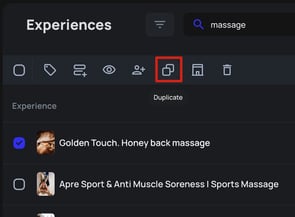
Option 1 – From the experience list:
-
Go to the experience list in your CMS.
-
Select one or more experiences using the checkboxes.
-
Click the duplicate icon in the action bar.
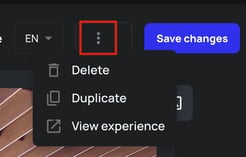
Option 2 – From the detail view:
-
Open the experience you want to duplicate.
-
Click the three dots (⋮) in the top right corner.
-
Select “Duplicate”.
The experience will be copied and added to your list as a draft – ready for you to customize and publish.
2. 🗑️ Delete an Experience
Want to remove an experience you no longer need?
It’s simple:
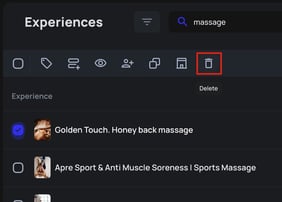
Option 1 – From the experience list:
-
Open the experience list.
-
Select the experience(s) you want to delete.
-
Click the trash icon.
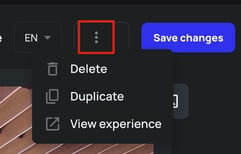
Option 2 – From the detail view:
-
Open the experience you want to delete.
-
Click the three dots (⋮) in the top right corner.
-
Select “Delete”.
🔒 Note: Deleted experiences cannot be restored – please double-check before removing them permanently.
✅ Summary
Using the bulk actions in the experience list, you can:
-
Duplicate experiences for quick reuse
-
Delete experiences you no longer need
It’s a quick and easy way to keep your content organized and up to date.
If you have any questions, feel free to reach out to our support team – we're happy to help!